Best Settings for Live Sports Streaming
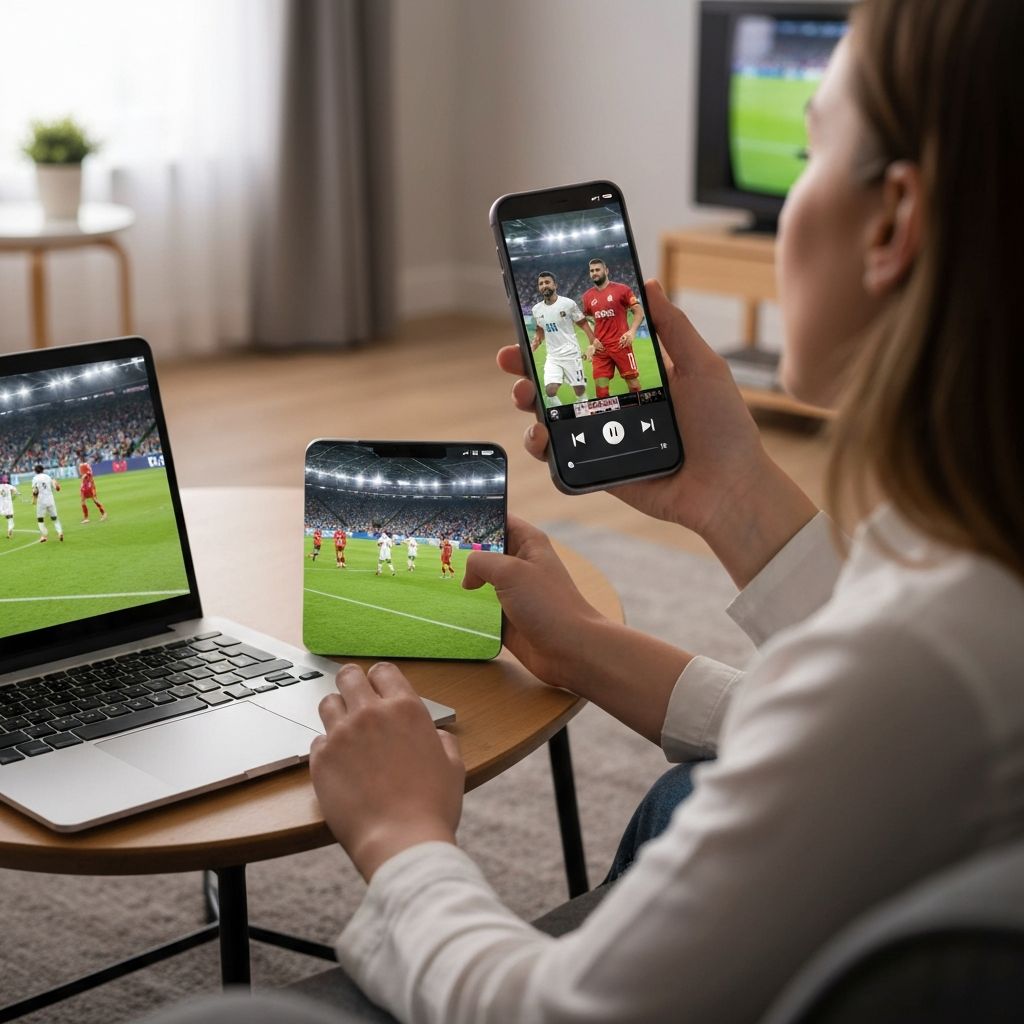
Live sports demand the highest streaming quality with minimal delay. Missing a goal because of buffering or watching in poor quality ruins the experience. This guide provides optimal settings for Champions League, Premier League, La Liga, and all live sports streaming on IPTV.
Why Sports Streaming is Different
Unlike movies or series that you can pause and resume, live sports require real-time streaming with no interruptions. Fast-moving action and quick camera movements also demand higher bitrates and better video encoding. Proper settings ensure you never miss a crucial moment.
Key Requirements for Sports Streaming:
- Low Latency: Minimal delay between live action and what you see
- High Bitrate: Clear picture even during fast motion
- Stable Connection: No buffering during critical moments
- Proper Codec: Efficient video decoding for smooth playback
Optimal Video Settings
Resolution Settings
Choose the highest resolution your internet connection can handle without buffering:
- 4K/UHD (3840x2160): Requires 50+ Mbps - Best for large screens, premium sports packages
- Full HD (1920x1080): Requires 15-25 Mbps - Best balance of quality and bandwidth
- HD (1280x720): Requires 8-15 Mbps - Good for smaller screens or moderate connections
- SD (720x480): Requires 5-8 Mbps - Only if connection is limited
Pro Tip: Set resolution to match your TV's native resolution. Playing 4K content on a 1080p TV wastes bandwidth without improving quality.
Bitrate Configuration
Higher bitrate means better quality but requires more bandwidth. For live sports:
- Recommended: 8000-12000 kbps for HD sports
- Premium: 15000-25000 kbps for 4K sports
- Conservative: 5000-8000 kbps for stable connections
Frame Rate (FPS)
Sports broadcasts typically use 50 or 60 FPS for smooth motion. Settings:
- 50 FPS: Standard for European sports broadcasts
- 60 FPS: Common for American sports
- Enable frame rate matching if available
Buffer Settings for Sports
Buffer settings balance stream stability with latency. For live sports, you want minimal buffering to stay close to real-time:
Recommended Buffer Configuration:
- Buffer Mode: Set to "Low Latency" or "Live" if available
- Buffer Size: 5-10 seconds (lower than on-demand content)
- Pre-buffer: 2-3 seconds
- Re-buffer: Enable for quick recovery if buffering occurs
Note: If you experience frequent buffering, increase buffer size to 15-20 seconds. You'll be slightly behind live but with smoother playback.
Audio Settings
Clear audio enhances the sports viewing experience, especially for commentary and stadium atmosphere.
- Audio Codec: AAC or AC3 for best compatibility and quality
- Audio Channels: 5.1 surround if available and you have a sound system; otherwise stereo 2.0
- Audio Sync: Enable audio synchronization to prevent commentary delays
- Volume Normalization: Enable to maintain consistent volume between channels
Hardware Acceleration
Enable hardware acceleration to offload video decoding to your device's GPU. This provides:
- Smoother playback with less CPU usage
- Reduced device heating
- Better performance for 4K content
- Longer battery life on mobile devices
Look for "Hardware Acceleration," "Hardware Decoder," or "GPU Rendering" in your player settings and enable it.
Network Optimization for Sports
Connection Type
Always use Ethernet when possible for live sports. WiFi is convenient but prone to interference during crucial moments. If you must use WiFi:
- Connect to 5GHz band for faster speeds
- Position your device close to the router
- Disconnect other devices during the match
- Close background apps that use bandwidth
Time Your Viewing
If you experience congestion during peak hours (evenings, weekends), consider:
- Using Quality of Service (QoS) on your router to prioritize streaming
- Scheduling large downloads for after the match
- Asking family members to limit streaming during important games
Device-Specific Tips
Smart TV:
- Disable automatic software updates during viewing
- Turn off motion smoothing (soap opera effect) for natural sports motion
- Enable "Game Mode" or "Sports Mode" if available
- Close unused apps to free up memory
Firestick/Android Box:
- Clear cache regularly for optimal performance
- Use external player apps optimized for sports (VLC, MX Player)
- Disable unnecessary background services
- Ensure device isn't overheating during long matches
Mobile/Tablet:
- Enable "Do Not Disturb" to prevent notification interruptions
- Connect to power source for long matches
- Disable auto-brightness for consistent viewing
- Use landscape orientation and full-screen mode
Multi-Device Viewing
If you watch sports on multiple devices (TV in living room, tablet in bedroom):
- Ensure your IPTV plan supports multiple connections
- Each stream requires its own bandwidth allocation
- Use the same settings across all devices for consistency
- Consider upgrading your internet plan if streaming on 2+ devices simultaneously
Quick Pre-Match Checklist
Before kickoff:
- Test stream 10-15 minutes early
- Restart router and streaming device
- Run internet speed test (ensure 25+ Mbps)
- Close all background apps and downloads
- Have backup connection method ready (mobile hotspot)
- Clear player cache
- Verify audio/video settings